Published
January 18, 2026
Update December 2, 2025: Wall Selections, Ridge Height & Bill of Quantities
📂 Wall Selections!

Step-by-step guide:
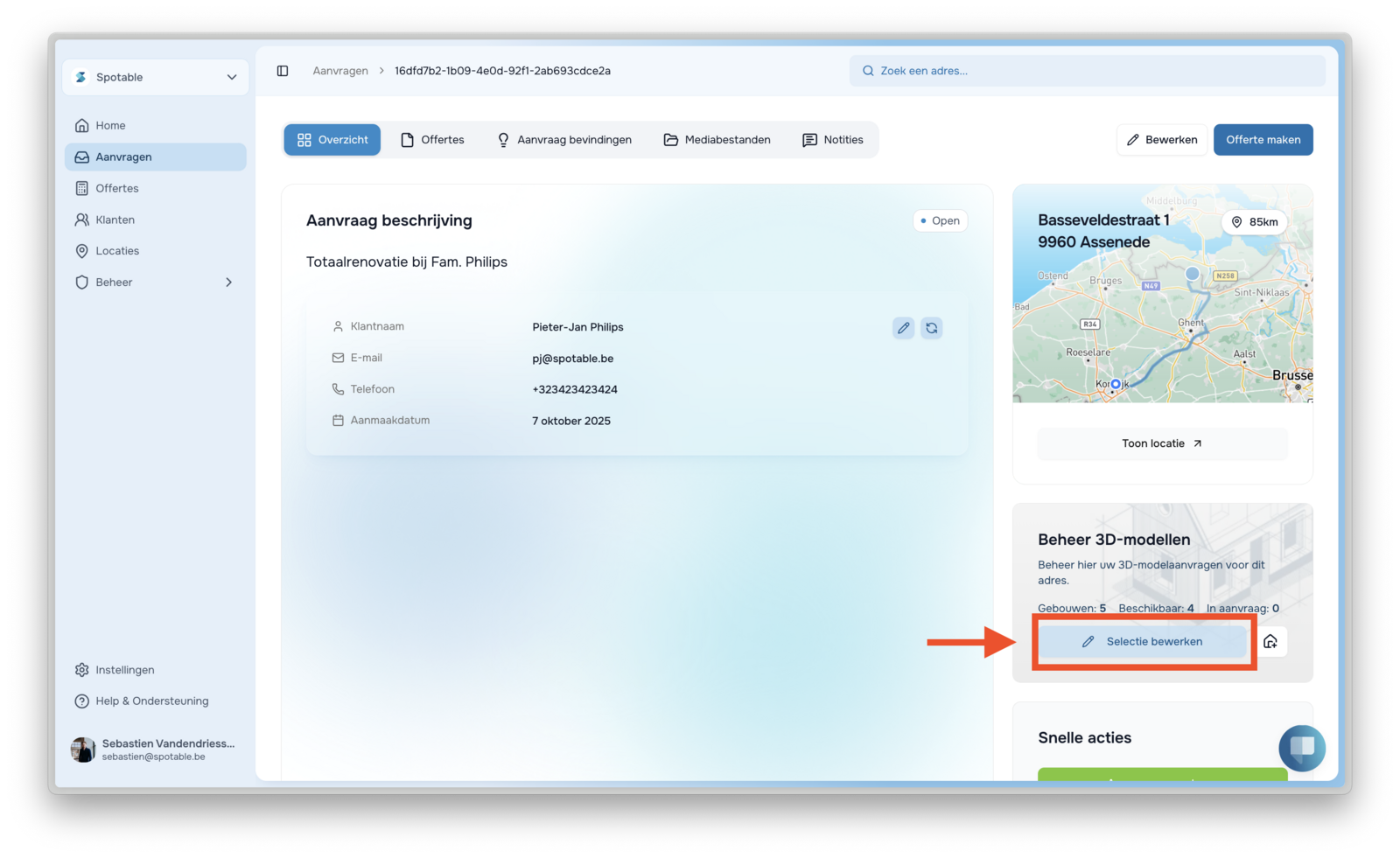
- Go to “Edit Selection”Click on Edit Selection in the bottom right corner. The 3D model will become interactive, and selectable surfaces will light up.
- Choose “Wall Areas” or “Wall Distances” at the topIn the selection-edit mode, measurement options become active. Click on:
- 🧱 Wall Areas – to see individual wall surface areas.
- 📏 Wall Distances – to see the measurements/distances of the walls.
- Click on a wall surface in the 3D modelAs you move over the model, surfaces become selectable. Click on a wall to see the relevant dimensions and surface areas.
🙋🏼♂️ Ridge Heights
Available on the Address Page and in "Edit Selection"
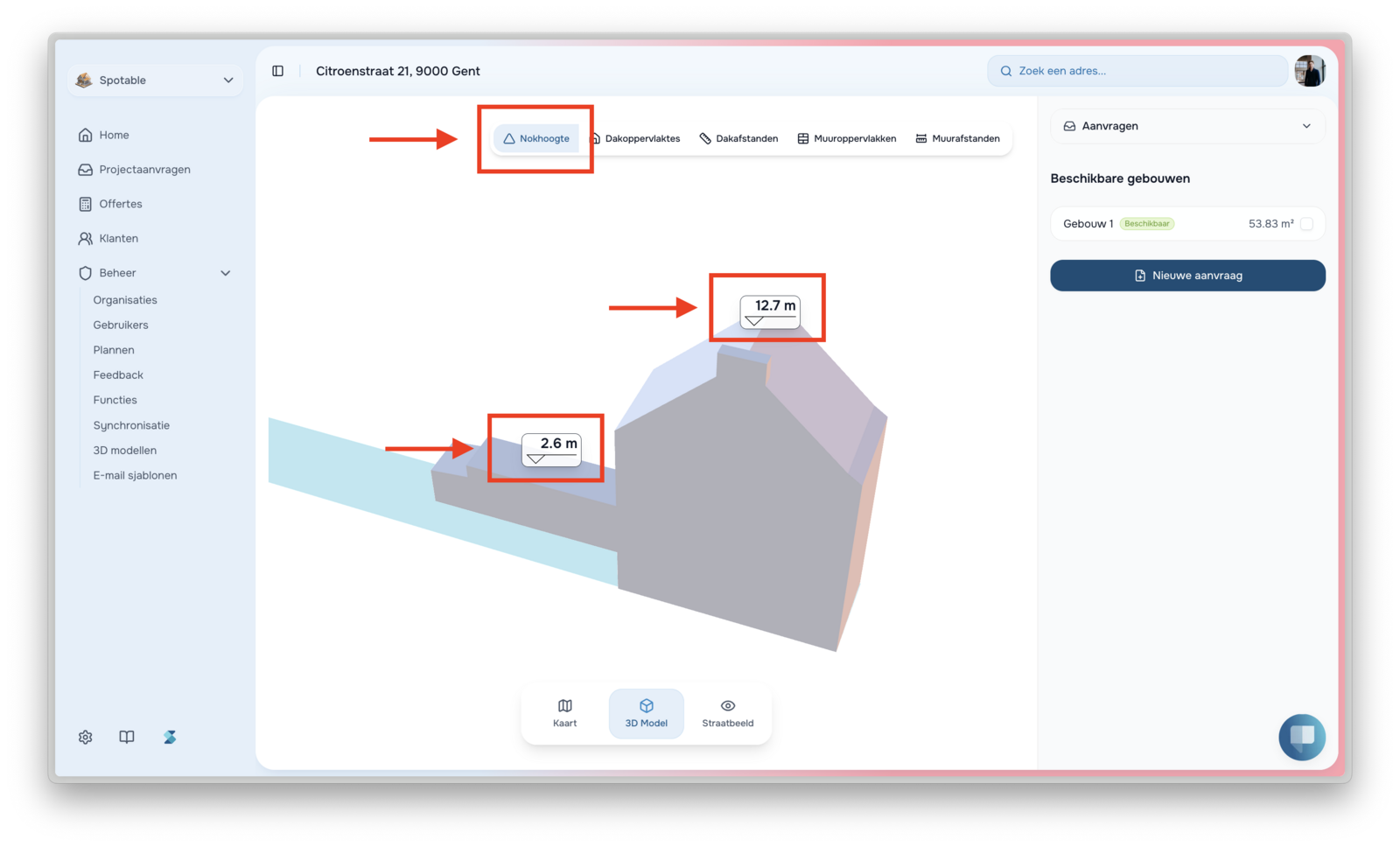
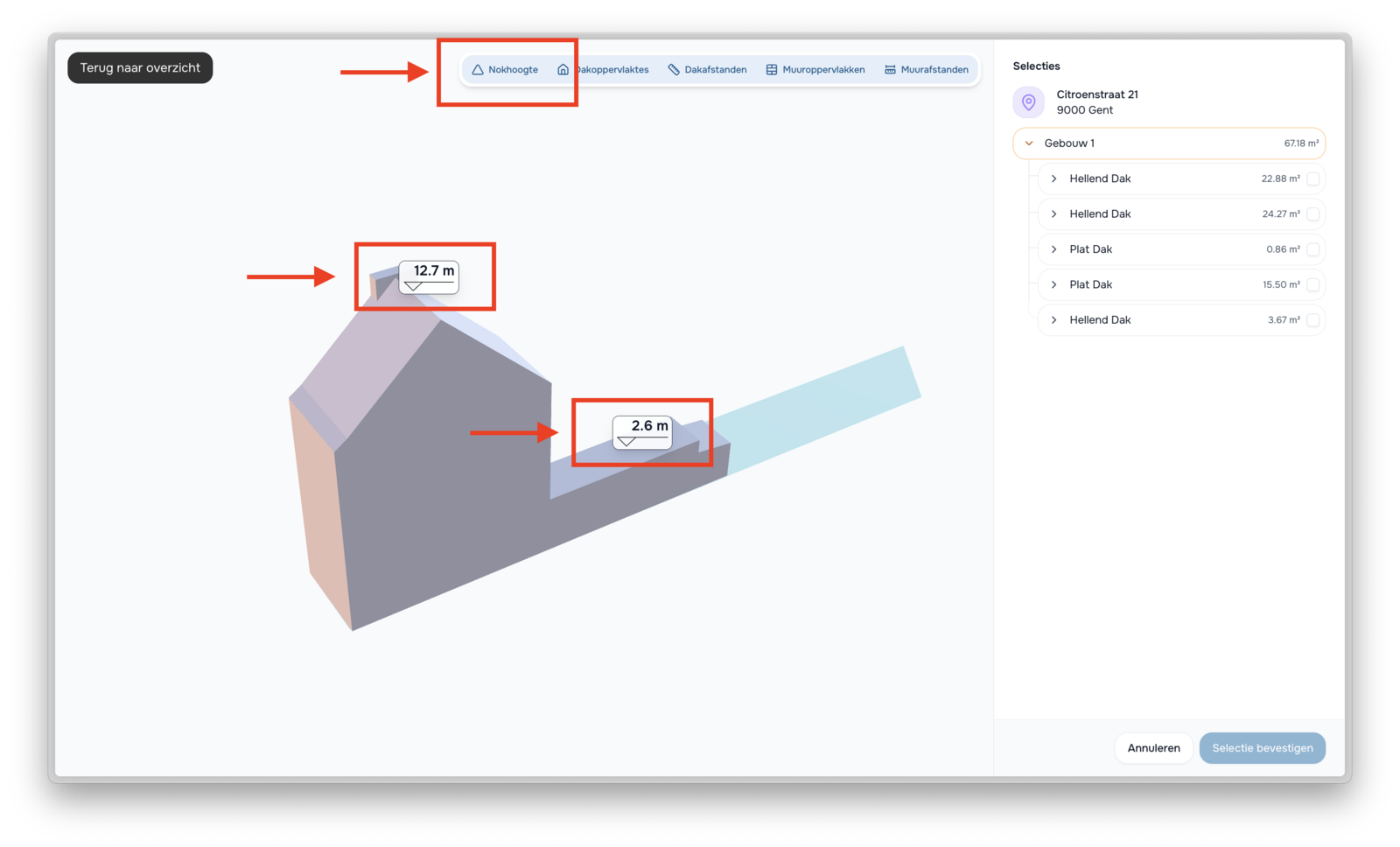
With Ridge Height, you can easily measure the height of the ridge or the highest roofline. Whether on the Location Page (for a quick consultation) or in Edit Selection (for detailed assignments), you can click on roof points to see their height.
- Open the 3D model. This can be done via:
- Location Page: Go to an address → click on 3D Model.
- Edit Selection: During a project request → click on Edit Selection.Both screens show the same measurement options at the top
- Click on “Ridge Height” at the top: In the toolbar above the model, you have various measurement modes. Choose🔺 Ridge Height: The model will now display the ridge heights.
🙋🏼 Exporting Bill of Quantities
With Spotable, you can now export a full Bill of Quantities (measurement state) for the selected roof surfaces.Note: Always check the length types on the right side before exporting.
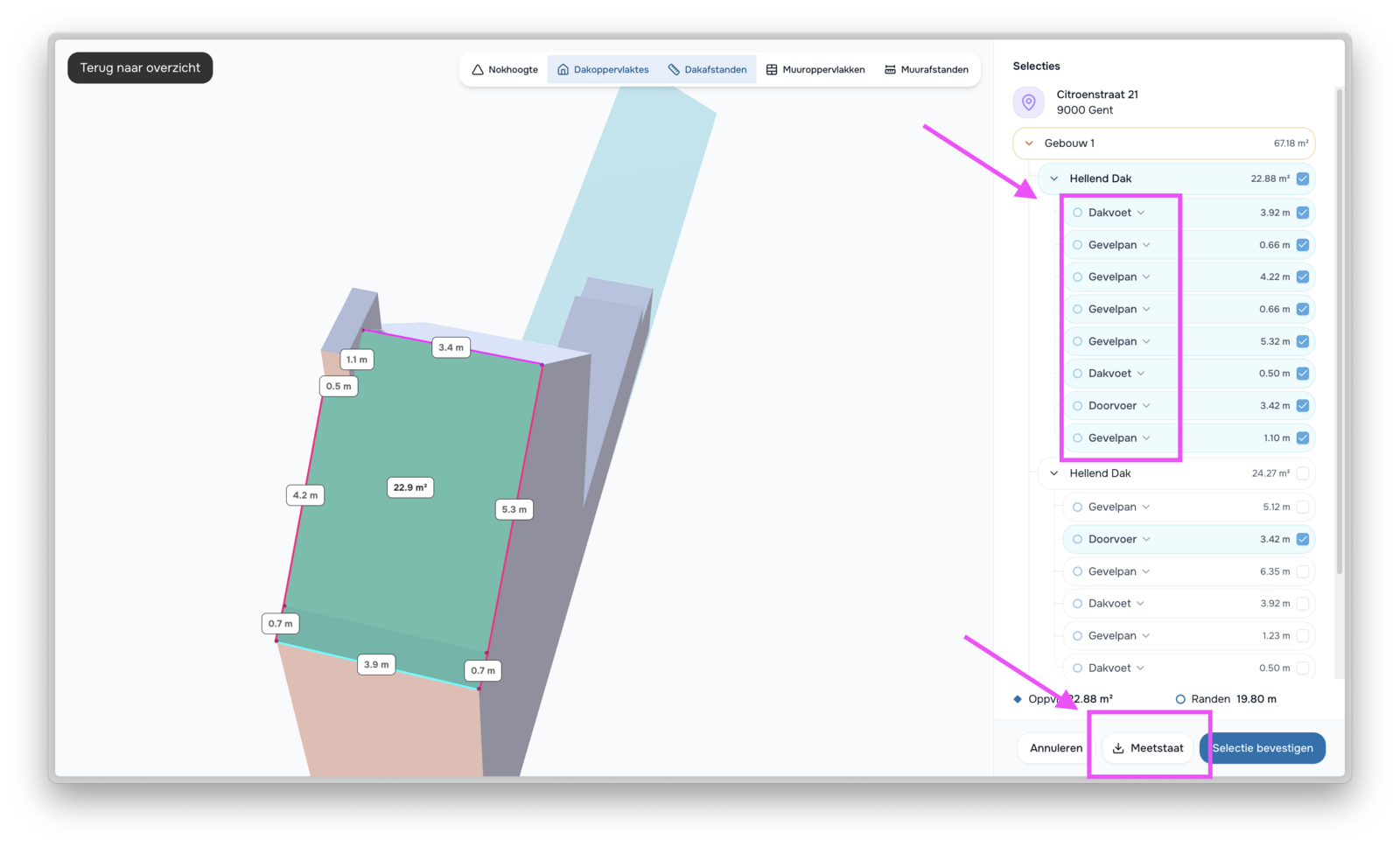
Step-by-step guide:
- Select one or more roof surfaces. Click on the desired roof sections you wish to export. The selected surfaces and their edges will automatically appear in the right panel.
- Check the length types (Important!). On the right side, for each selected roof surface, you will see:
- Eaves
- Gable edge
- Penetrations
- Other edge types depending on the roof: Spotable generates these automatically, but you must manually verify if each segment has the correct type.⚠️ Incorrect types will lead to an inaccurate bill of quantities. You can open, change, and correct each item.
- Check the total area and edge length. At the bottom, you will see:
- Total Area (m²)
- Total Edge Length (m)This ensures your selection is complete.
- Click “Bill of Quantities” to export. In the bottom right, you will find the button:
- 📄 Bill of Quantities. This exports a detailed document including:
- Surface areas per roof plane
- All edge types with correct lengths
- Total quantities.
Perfect for quotes, work preparation, and calculations.


Other
Product updates
The latest industry news, interviews, technologies, and resources.